The question, in four parts
- Which Grok? Grok Bot and Grok Build connect directly. Grok on the web connects through a custom connector. One address works for all three.
- What can it publish? Pages, Markdown documents and diagrams, from any of them. Grok Bot can also upload PDFs, decks and images, because it runs on its own cloud computer.
- Do the people I share with need Grok? No. Links open in any browser, and you choose who can open each one.
- Can I change it later? Yes, at the same link. Every change is a version you can roll back.
https://mcp.artifact.guru/mcpThere’s no key to paste into a header. Sign-in happens once, in your browser.
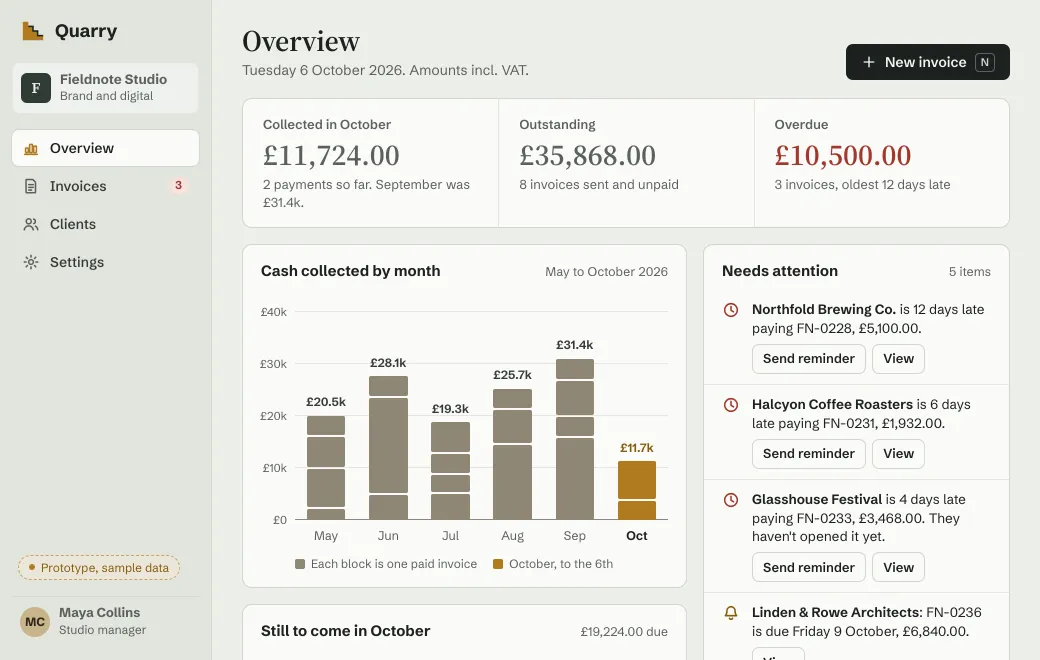
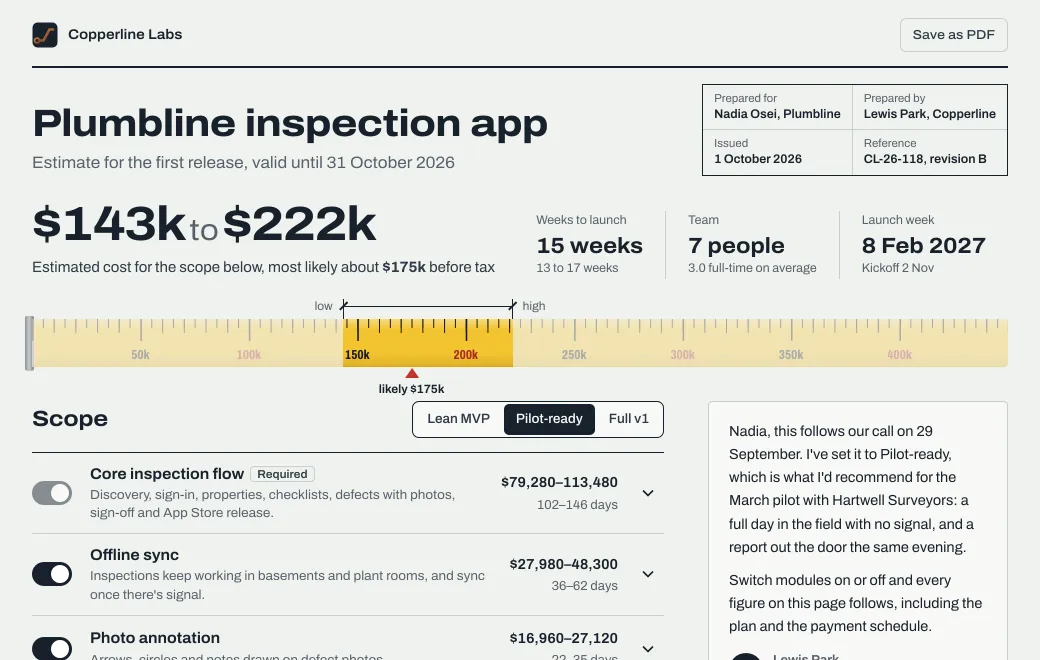
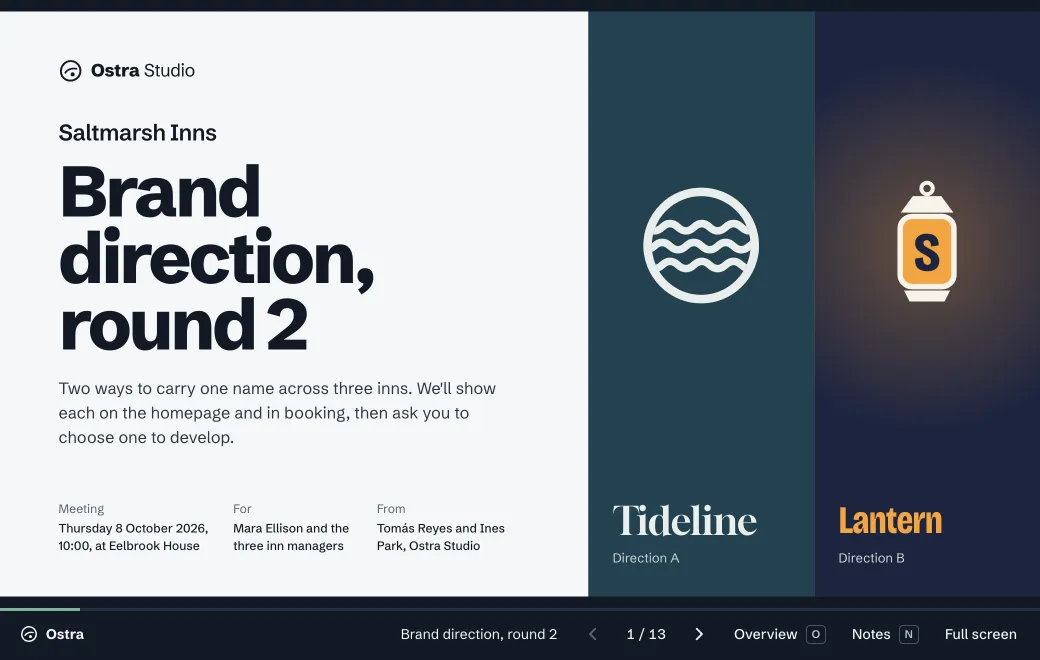
From a research answer to a page people can explore
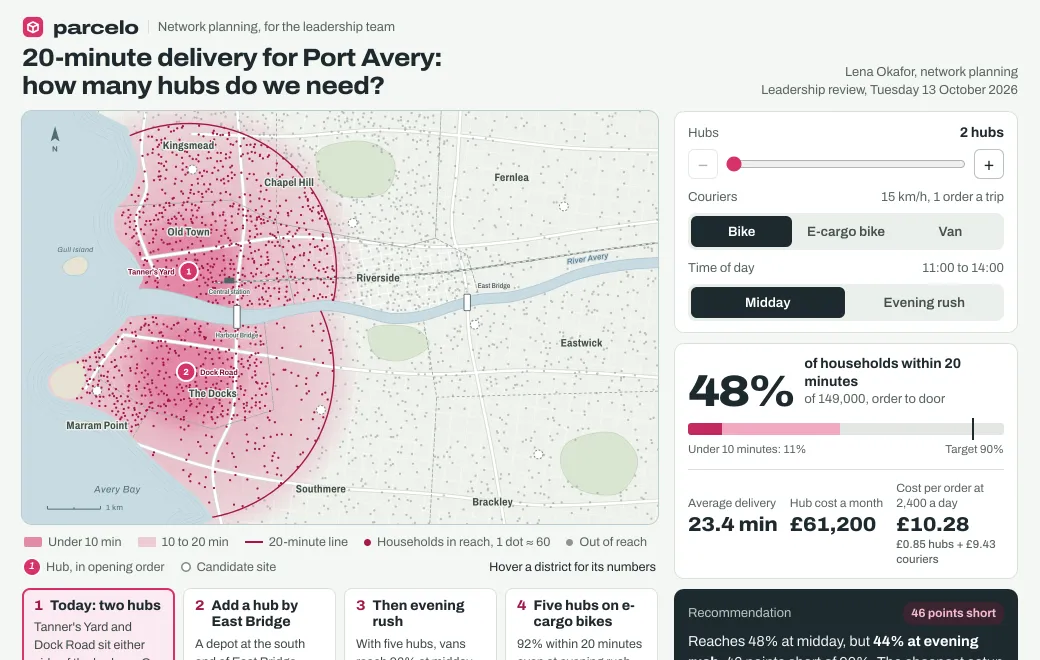
In a meeting, a page where people can change the inputs is easier to discuss than a long answer. The map below helps Parcelo’s network planner work out how many hubs Port Avery needs for 20-minute delivery. Press + to open the East Bridge hub, and the coverage jumps.
Readers can add hubs, change the couriers or switch to the evening rush. Each time, the map shows what share of Port Avery’s 149,000 households is in reach. The recommendation says how far each setup falls from the 90% target, and Show the recommended setup jumps straight to the answer. On a phone, readers tap a district or a hub for its numbers.
Ask for it like this
Once Grok has answered your research question, follow up in the same chat:
Turn your answer into one self-contained HTML page for our leadership team.
Lead with the question, and the recommendation in one sentence.
Give readers the three inputs that change the answer most, and update every number as they move them.
Add a short story of three or four steps that sets the inputs to make the argument, and a button that shows the recommended setup.
Put the assumptions on the page, with your sources and their dates. Mark anything you estimated rather than found.
Make it work at 390 pixels wide, with tap instead of hover.
Then publish it to artifact.guru privately and give me the link.
The story steps make the argument in order and then hand the controls to the reader, so everyone in the meeting starts from the same picture.
Connect Grok Bot
- Ask the Bot to add it
In a Grok Bot chat, say: “add a custom MCP server called artifact-guru, Remote HTTPS, at this address”. Plugins live in the Bot’s setup, not in Settings; on a Team Bot, the owner adds it from the Plugins card under Setup.
Copyhttps://mcp.artifact.guru/mcp - Authorize
Choose Authorize on the connect card, sign in and pick workspaces. Then type
@in a chat to attach artifact.guru to a task.
Grok Bot runs on its own cloud computer, so it can upload binary files, such as a PDF report or a PowerPoint deck, as well as text.
Grok Build and Grok on the web
grok mcp add --transport http artifact-guru https://mcp.artifact.guru/mcpYour browser opens to sign in the first time Grok uses it.
Things to ask
- “Publish this summary as a private page and give me the link.”
- “Publish the PDF you just made to artifact.guru.” (Grok Bot)
- “Find my launch plan and change the date to November 14. Keep the same link.”
- “Put a secret code on the client report.”
- “Move everything about Q4 into a project called Q4 planning.”
- “Roll the roadmap back to yesterday’s version.”
Grok replies with the link and who can open it. New artifacts are always Private until you share them.
Revise it at the same link
Ask for the change in your own words: “Change van speed at evening rush to 12 km/h and update the recommendation. Keep the same link.” The agent reads the file, sends only the part that changes and checks a picture of the result. Either all of the edit applies or none of it does.
The change is the next version, and people see it the next time they open the link. If it’s wrong, choose Roll back in Versions, or ask: “roll the hub map back to version 2”.
Use Grok and Claude on the same workspace
Connect each client once and tick the same workspace when you approve. They see the same files, so Claude can polish a page Grok published, and Grok can update a report Claude wrote.
- Claude Code: run
claude mcp add --transport http --scope user artifact-guru https://mcp.artifact.guru/mcponce, then type/mcpto sign in. - claude.ai and Claude Desktop: open Settings → Connectors, add a custom connector named artifact.guru, paste the address and approve.
- Claude Team and Enterprise: an Owner adds the connector for the organization first. Then each member connects to it and approves.
The two agents can’t overwrite each other. If one changed a file after the other read it, the second edit is refused, and that agent reads the file again before retrying. Versions shows who published each version.
Disconnect
A connection stays signed in for months while you use it. To end it, remove the artifact-guru server from that client, wherever you added it. If you leave a team, your agents lose access to its workspace at once, because membership is checked on every call.
If something doesn’t work
| What you see | What to do |
|---|---|
| The browser never opened | Choose Authorize on Grok Bot’s connect card again, or remove the server and add it again. |
| Calls fail with “401” or “invalid token” | Grok lost its sign-in. Reconnect it from its MCP settings and approve again. |
| The file went to the wrong workspace | New files go to the first ticked workspace. Name the workspace in your request, or ask Grok to move it. |
| It can’t send a file from your computer | The server can’t read paths on your computer. Drop the file on your workspace in the browser instead. |
When you don’t need artifact.guru
- The answer is for you alone. Keep it in the chat.
- A few paragraphs are all anyone needs. Paste them into an email or a message.
- The page needs a server: sign-ins, a database, or a form that stores answers. That needs real hosting.
There are no comments on a page and no notification when someone opens a link. Views in the app names who opened a Private or Email link and counts visitors on the others; Grok can’t read views.