The question, in four parts
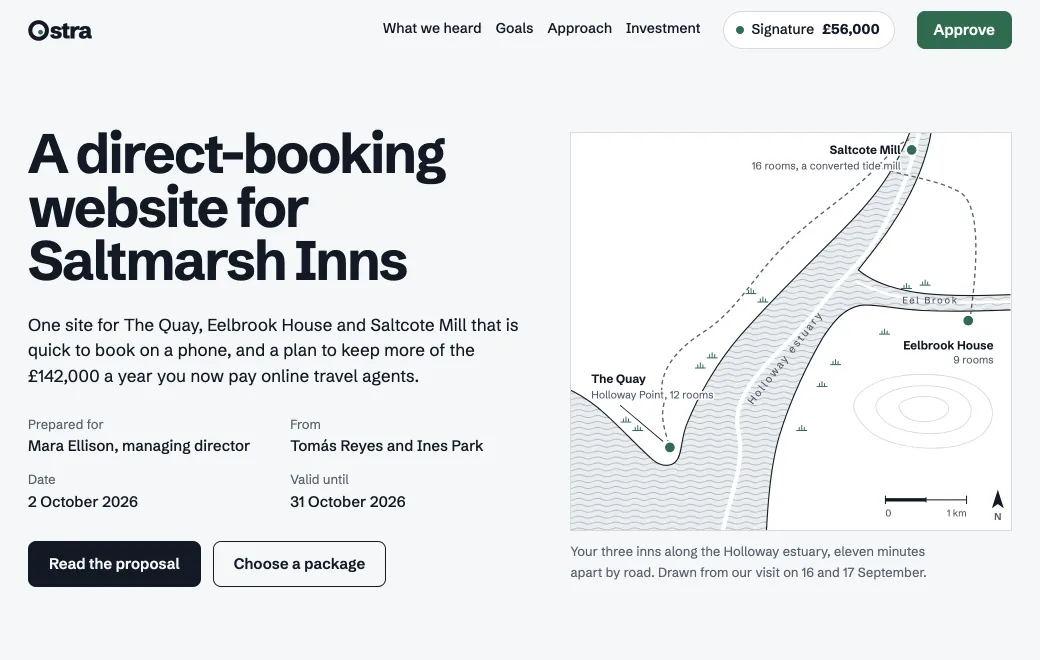
- Can people without ChatGPT open it? Yes. The page lives on artifact.guru and opens in any browser. You decide whether they sign in, enter a code, or just open it.
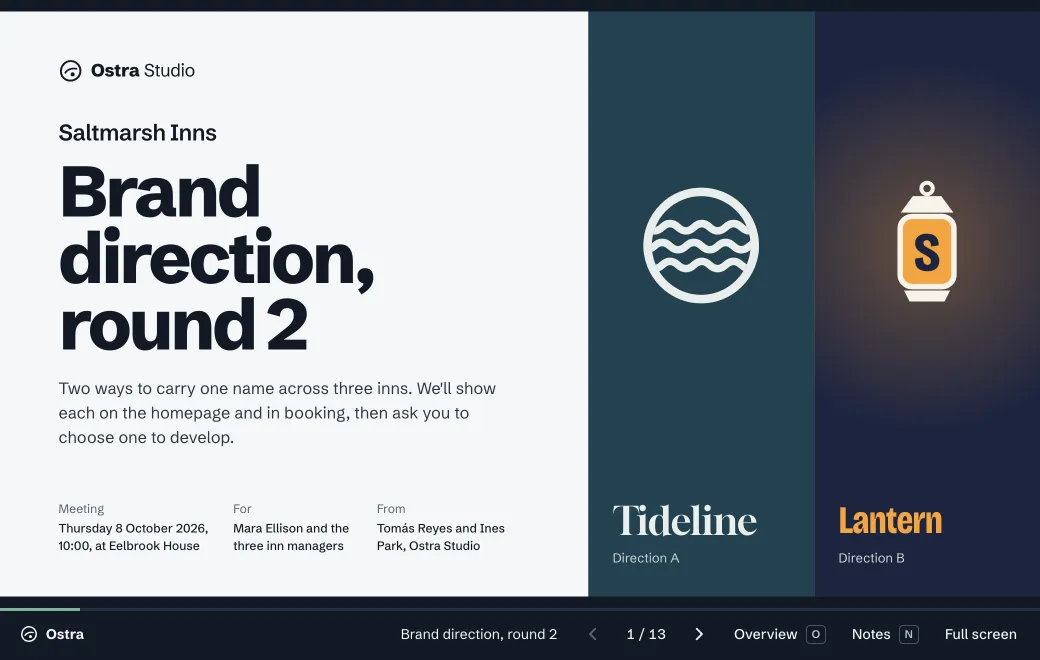
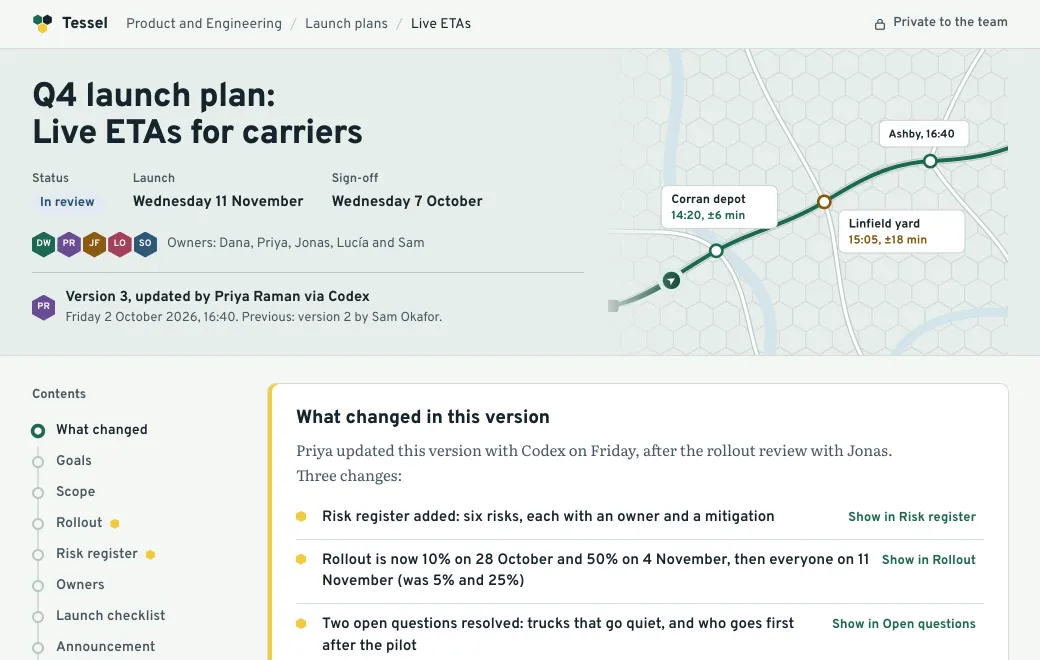
- What can ChatGPT publish? Text formats, such as HTML pages, React components, Markdown and diagrams. PDFs, decks and images have to be uploaded.
- Which plans? Publishing needs ChatGPT’s full MCP support, which OpenAI’s help center lists for Business, Enterprise and Edu workspaces, on the web. On Business, only admins and owners can use developer mode. On Pro, connected apps can read but not write. OpenAI’s developer guide also lists Plus and Pro, so this may be changing. If ChatGPT can’t publish, upload the file instead.
- Can I change it after I’ve sent it? Yes. Ask ChatGPT for the change, and the link stays the same.
What you can send
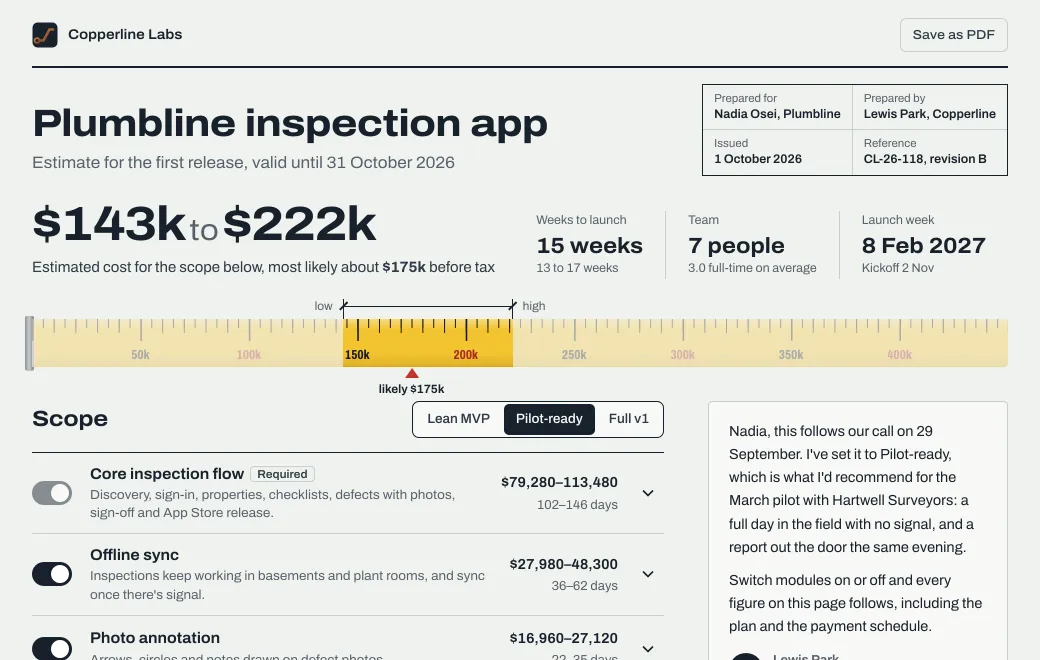
Copperline Labs wrote the estimate below for Plumbline’s inspection app and shared it with the client by Email. It’s one HTML file, the sort of page a chat can write. Add Android, and the team grows.
Approve estimate doesn’t send anything, and the page says so. Email Lewis to confirm opens the reader’s own email app with the summary filled in. With no server behind the page, that’s the honest way to collect a yes.
Connect ChatGPT once
- Turn on developer mode
On Business, only admins and owners can use it, and each one turns it on under Settings → Apps → Advanced settings. On Enterprise and Edu, an admin grants it, and then you turn it on in the same place.
- Create the app
Under Apps, choose Create, paste the address, choose OAuth and Scan Tools.
Copyhttps://mcp.artifact.guru/mcp - Approve
Sign in and pick workspaces in the window that opens.
The app starts as a draft that only you can use. To offer it to the whole workspace, an admin publishes it under Workspace settings → Apps.
On plans with full MCP support, developer mode gives ChatGPT read and write tools, and there are no keys to copy. The approval page ticks every workspace you have, so untick the ones ChatGPT shouldn’t use. New files go to the first ticked workspace unless you name another, as in “publish this to the Acme workspace”.
What ChatGPT can publish directly
Text formats go straight through the connection, because ChatGPT sends the page’s text with the request. Binary files have to be uploaded first, which needs an agent that can send the file itself.
| What ChatGPT made | How it gets to artifact.guru |
|---|---|
A web page (.html) | Directly from the chat, up to 5 MB |
A React component (.jsx, .tsx) | Directly; it’s compiled when it’s served |
| Markdown, Mermaid or Excalidraw | Directly, up to 2 MB |
| A PDF, Word file, deck or image | Not through the chat. Save the file and drop it on your workspace in the browser, or use an agent with file access, such as Claude Code, Codex, Gemini CLI or Grok Bot |
| A site with several files | Zip it and upload it in the browser, or publish it from an agent with file access |
What to ask, and what comes back
| Say to ChatGPT | What happens |
|---|---|
| “Publish this page to artifact.guru and give me the link.” | It asks you to confirm, then replies with a private link |
| “Publish this as Markdown, called Q4 plan, in the Client work project.” | A formatted document, filed in that project |
| “Invite nadia@example.com to the estimate.” | The link switches to Email. Send it to her yourself; invitations aren’t emailed for you |
| “Put a secret code on it that expires in 7 days.” | ChatGPT gives you the code. Send it separately from the link |
| “Make it public.” | Anyone with the link can open it |
After a publish, ChatGPT replies with the link and who can open it. New artifacts are always Private, so only your workspace can open them until you share. Open the link yourself first, since it shows the page exactly as visitors will see it.
The confirmation prompts
In developer mode, write actions ask for confirmation by default. Publishing, editing, sharing, rolling back and deleting all change your workspace, so expect a prompt before each one. Reading a file’s source before an edit can ask too, because the same tool can also take a picture of the page. Searching your workspace doesn’t.
Read each prompt before you confirm, and look hardest at sharing and deleting. artifact.guru also tells agents to ask before either, so say plainly when you want a link opened up or a file gone.
Revise it at the same link
Ask in the same chat or a new one:
- “Find the Plumbline estimate and change the valid-until date to November 30. Keep the same link.”
- “Roll the estimate back to version 2.”
ChatGPT finds the artifact, reads its source and sends only the change. All of an edit applies, or none of it does. The change becomes the next version, and the people you shared it with see it the next time they open the link.
Versions lists each version with who published it and the tool it came from. If a colleague changed the page in the app’s editor after ChatGPT read it, ChatGPT’s edit is refused rather than overwriting their work, and it reads the page again before retrying.
When to use something else
- ChatGPT’s own sharing already covers who needs to see it. Use that.
- It’s a short text answer. Paste it into an email or a message.
- The page needs a server for sign-ins, a database or a form that stores answers. That needs real hosting.
- ChatGPT can’t publish on your plan. Save the HTML ChatGPT wrote as a file and drop it on your workspace in the browser. You get the same link, sharing and versions; later changes go in with Upload new version or the app’s editor.
Limits
- ChatGPT publishes text formats only. Binary files need an upload.
- An HTML page or React component is up to 5 MB.
- There’s no server behind a page, no comments, and no notification when someone opens a link.
- Views names who opened a Private or Email link and counts visitors on the others, in the app only. ChatGPT can’t read it.