What “update without a new link” involves
- What readers see: the new version, the next time they open the link.
- How to change it: a focused edit from your agent, or your own in the app.
- Who changed what: the Versions list, newest first.
- How to undo it: Roll back, at the same link.
Three people worked on the launch plan below, one version each. Switch between v1, v2 and v3.
Three versions, one link
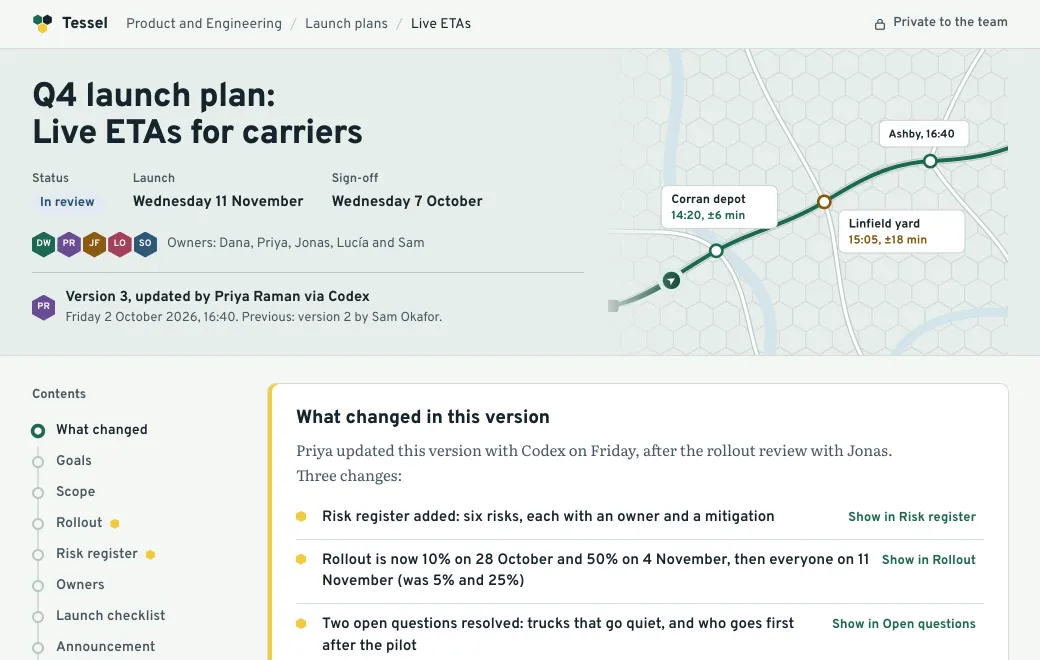
Priya Raman, with Codex Added the risk register and rollout dates, resolved two open questions
Dana Whitlock drafted Tessel’s Q4 launch plan with Claude. Sam Okafor then opened it in the browser editor, moved the launch and cut the announcement. Finally, Priya Raman used Codex to add a risk register and widen the rollout stages to 10% and 50%. The link stayed the same throughout.
| Version 1 | Version 2 | Version 3 | |
|---|---|---|---|
| Made by | Dana, with Claude | Sam, in the editor | Priya, with Codex |
| Launch date | 4 November | 11 November | 11 November |
| Rollout | 5% on 21 Oct, 25% on 28 Oct | 5% on 28 Oct, 25% on 4 Nov | 10% on 28 Oct, 50% on 4 Nov |
| Announcement | First draft, 174 words | Cut to 93 words | Unchanged |
| Risks | None listed | None listed | Risk register added |
| Link | /q4-launch-plan | /q4-launch-plan | /q4-launch-plan |
Each version opens with a “What changed in this version” box. Readers aren’t told about updates, so a note like that, or a line in your message, shows them where to look.
What readers see when you update
- The next open shows the new version. The link always shows whichever version is live.
- An open tab keeps the old one until it’s reloaded. Nothing is pushed to pages people already have open.
- Access stays the same. The mode, the secret code and the invitations don’t change when the content does.
- Old chat previews stay. On a public link, a card a chat app already drew keeps its old title; new messages show the new one.
- Nobody is notified. Tell people when a change matters to them.
Make a focused change
Name what changes and what must not. The more precise the request, the smaller the edit:
- “Move the launch to 11 November and update every date that depends on it. Keep the rest.”
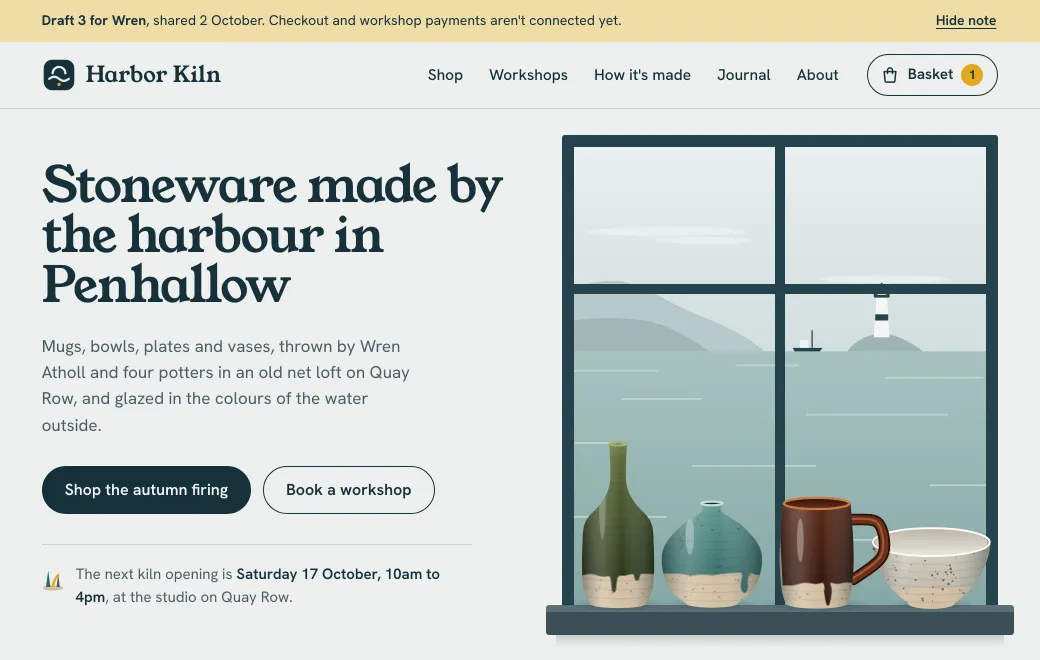
- “Replace the data with the attached CSV and update the date. Don’t change the layout.”
The agent reads the current source, sends only the changed lines and checks a picture of the result. Either the whole edit applies or none of it does. Ask it to sum up the change in a sentence, and that note appears in the Versions list.
To edit it yourself, open the artifact and choose Edit. HTML, Markdown, Mermaid and Excalidraw open as source beside a live preview. A React component previews when you save, and a PowerPoint deck opens in a slide editor for text and layout. Saving makes a new live version.
When two people change it at once
There’s no live co-editing, so changes land one at a time. Agent edits are checked first. If a colleague saved a change after your agent read the file, the agent’s edit is refused instead of overwriting their work. The agent reads the file again, with their change in it, and retries. If Sam had saved while Priya’s agent was working, the risk register would have gone on top of Sam’s version. And every save is its own version, so nothing anyone published is lost.
See who changed what
Open the artifact and look at Versions, beside the preview. Each row shows the version’s number and note, and who published it and when. It also says where the version came from, such as an upload or Claude Code. The live version is marked LIVE. Your agent can list the versions and their notes, but who made each one shows only in the app.
Roll back
- Open the artifact
The Versions list sits beside the preview, newest first.
- Roll back
Choose Roll back on the version you want, then confirm.
- Done
It’s live at once, at the same link. The newer version is kept.
Or ask: “roll the launch plan back to version 2”. Nothing is deleted, so you can go forward again with Make live on the newer version.
PDFs, decks and images
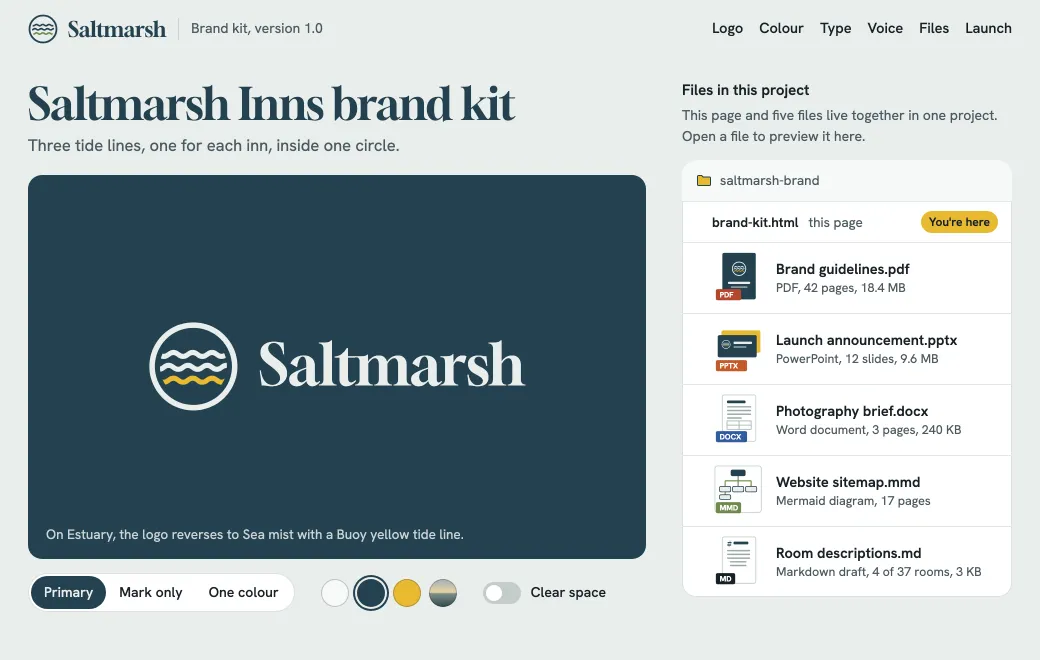
PDFs, Word files and images are replaced rather than edited. Open the artifact and choose Upload new version above the Versions list. Or ask an agent to publish the new file to the same artifact. It has to be one that can upload files, such as Claude Code, Codex, Gemini CLI or Grok Bot. Either way it becomes the next version, as long as it’s the same kind of file. Dropping it on your workspace instead makes a new artifact with a new link. PowerPoint decks can also be edited in the app. How to share a PowerPoint, Word file or PDF as a link has more.
Old versions and storage
Older versions count toward your storage: 250 MB on Free, 10 GB on Individual, and no limit on Team. To delete them for one artifact, use Delete older versions in its Versions list. For the whole workspace, use Settings → Storage, which also shows what takes the most space. Only versions before the live one go, so after a rollback the newer ones stay. Once deleted, a version can’t be brought back.
Rename the link
The link name is the last part of the address, such as /q4-launch-plan, and can be up to 32 characters. Change it in the artifact’s Share panel, or ask your agent: “give the launch plan the link name live-etas”. Links you already sent keep working and redirect to the new name.
How this compares with unpublishing in Claude
On artifact.guru, switching to Private stops outside access at once. The link, its versions and its views all stay, so you can share it again later.
When to use something else
- Writing together. If several people draft at the same time, a document editor with live co-editing and comments suits that stage. Publish here when it’s ready to share.
- A frozen record. Signed terms or a board pack as approved belong in a file nobody can change, kept with your records.
- Readers who must be told. If every change needs an alert, send the update yourself, by email or chat, with the link.
- A line-by-line comparison. The Versions list shows each version’s note, not a side-by-side view of what changed.
Limits
- No live co-editing and no comments: changes land one version at a time.
- No refresh pushed to open pages, and no notice to readers.
- Word files, PDFs, images and sites with several files aren’t edited in the app.
- Upload new version replaces a single file. A site with several files is replaced from an agent, or uploaded again as a new artifact.
- Deleted older versions can’t be restored.