Three questions in one
- Will it open for them? Yes, in any browser, phones included, with no Office or PDF app.
- Can I change it after sending? Yes. A new file published to the same artifact becomes the next version, at the same link.
- Who can open it, and did they? You choose one of four modes, and Views shows who opened it, or how many did.
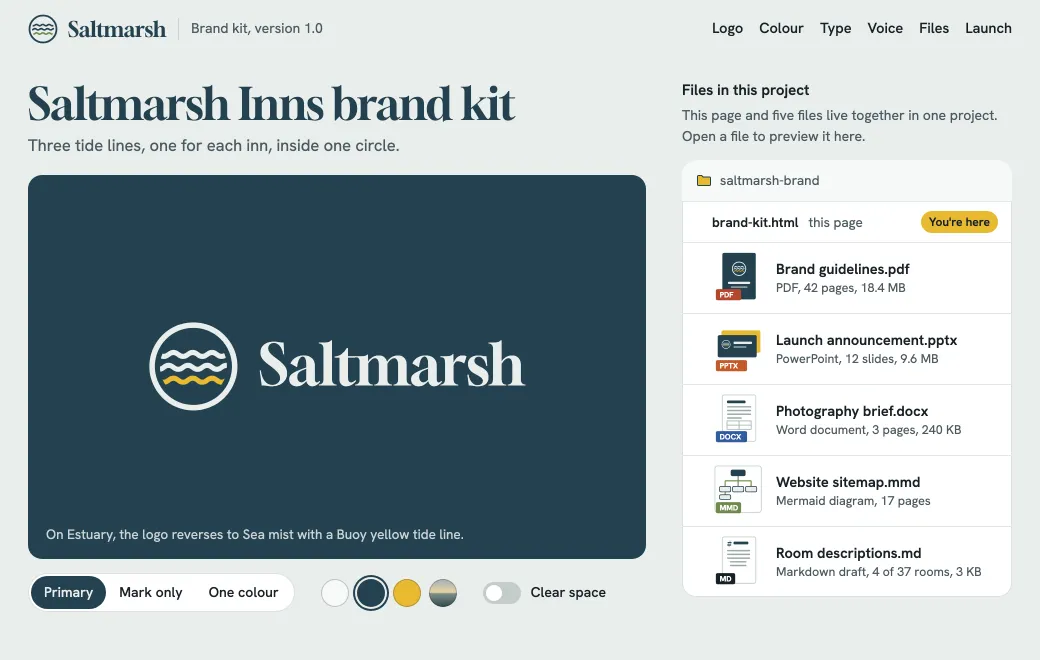
Open Brand guidelines.pdf in the brand kit below and page through it.
A handover in six formats
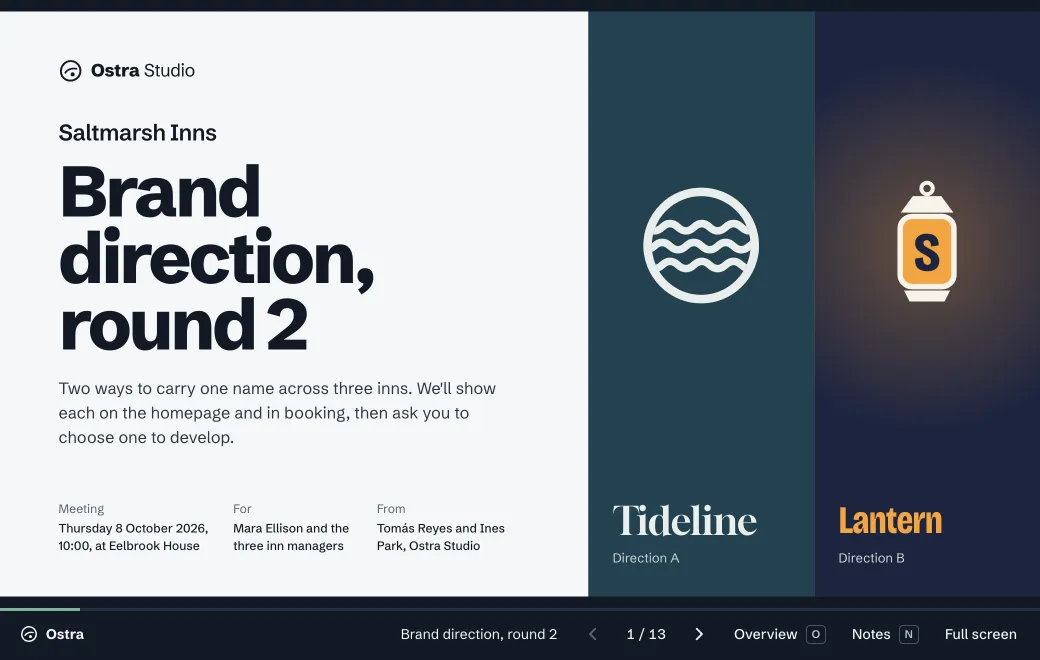
Ostra Studio made this brand kit for Saltmarsh Inns. The page itself covers the logo, colors, type and tone of voice, and its “Files in this project” section holds five more files. The brand guidelines are a 42-page PDF and the launch announcement a 12-slide PowerPoint deck. There’s also a photography brief in Word, a sitemap in Mermaid and a Markdown draft of the room descriptions.
In the brand kit above, the files open inside the page so you can try them here. In your workspace, each file is its own artifact, with its own link and access, and the page links to each one.
How each format opens
| Format | Files | What the reader gets | Change it by |
|---|---|---|---|
.pdf | Every page, numbered and fitted to the width of the screen, drawn as it scrolls into view | Publishing a new file | |
| Word | .docx | The document, laid out in the browser | Publishing a new file |
| PowerPoint | .pptx | Slides to click through | Editing in the app, or a new file |
| Images | PNG, JPG, GIF, WebP, AVIF, SVG, HEIC | Full size. If a browser can’t show a photo, the original is offered. | Publishing a new file |
Choose who can open it, and see who did
| Mode | Who can open it | Names in Views |
|---|---|---|
| Private | Your workspace; in a team workspace, the whole team | Yes |
| People you invite, up to 50, signed in with that address | Yes, and who hasn’t opened it yet | |
| Secret code | Anyone with the link and the code | Counts only |
| Public | Anyone with the link | Counts only |
Every link also shows its views and daily visitors for the last 30 days, and where they came from. Views counts opens, not pages or slides read. With controls on, the bar above the file has a Download button for the original. To hide it, switch off Show controls in the Share panel. Nothing stops a screenshot, and there are no watermarks. Choose who can open your link covers when to use each mode.
What your reader sees on a phone
A code link opens on “Enter the code”. An Email link shows “Sign in to open”; once they tap Continue and type the invited address, a one-time code arrives by email. Then the file fills the screen. A PDF is a column of numbered pages as wide as the phone, so 42 pages of guidelines scroll like one long page. A deck shows its slides to click through, and a Word file reads as a document. Nobody is asked to install anything.
Replace the file, keep the link
When the file changes, open the artifact, choose Upload new version above the Versions list, and pick the new file. Or ask an agent that uploads files to publish it to the same artifact:
- “Publish exports/brand-guidelines.pdf as a new version of Brand guidelines. Keep the same link.”
It becomes the next version. Anyone with the link sees it the next time they open it, or when they reload an open tab. The link, its access and its views stay as they were.
The new file has to be the same kind, so a PDF replaces a PDF and a deck replaces a deck. Dropping a file on your workspace instead makes a new artifact with its own link. A PowerPoint deck can also be changed in the app, where Edit opens a slide editor for text and layout. Saving makes a new version.
The Versions list keeps every earlier file, with who published it and when. Roll back makes an older one live again at once and keeps the newer ones. Old versions count toward your storage (10 GB on Individual, no limit on Team); delete them from the Versions list or in Settings → Storage.
Find it later by what it says
Search reads the text inside PDF, Word and PowerPoint files, not only their names. A new file is searchable a few moments after it’s published. In a team workspace everyone searches the same files, so “Eelbrook” finds every file that mentions it. Your agent can search too: “find the deck that mentions the Easter launch”.
Mix formats on one page
In the brand kit, one HTML page explains the work and links to each file, and the files sit beside it in a project. Ask for all of it at once:
Publish these files privately to a new artifact.guru project called
“Saltmarsh handover”. Then make one self-contained HTML page in the
same project that introduces the work and links to each file, opening
in a new tab, with one line on what each file is. Publish the page
privately too, and list every link for me.When an attachment is still fine
- The file is final and won’t change, such as a signed contract.
- The reader has to edit it in Office and send it back with tracked changes. artifact.guru has no comments or co-editing.
- It goes to one person you trust, and you don’t need to know whether they opened it.
- They’ll read it offline, or have to upload it somewhere else.
Limits
- One file can be up to 100 MB, or 250 MB on Team.
- Word files, PDFs and images aren’t edited in the app. Publish a new file instead.
- Views counts opens. There’s no time per page or slide, and no alert when someone opens it.
- There are no watermarks, NDA gates or download blocking.
- Email invitations don’t send email. You send the link.