Names or counts, depending on the mode
“Did they open it?” and “who opened it?” are different questions. Every link answers the first. Only links that make people sign in answer the second, because a name is only known once someone has signed in.
| Mode | Did anyone open it? | Who? | Your own opens |
|---|---|---|---|
| Private | Yes | Every member who opened it, by name | Counted, by name |
| Yes | Each invited person who opened it, by name, and who hasn’t opened it yet | Counted, by name | |
| Secret code | Yes, as counts | No names | Not counted while you’re signed in |
| Public | Yes, as counts | No names | Not counted while you’re signed in |
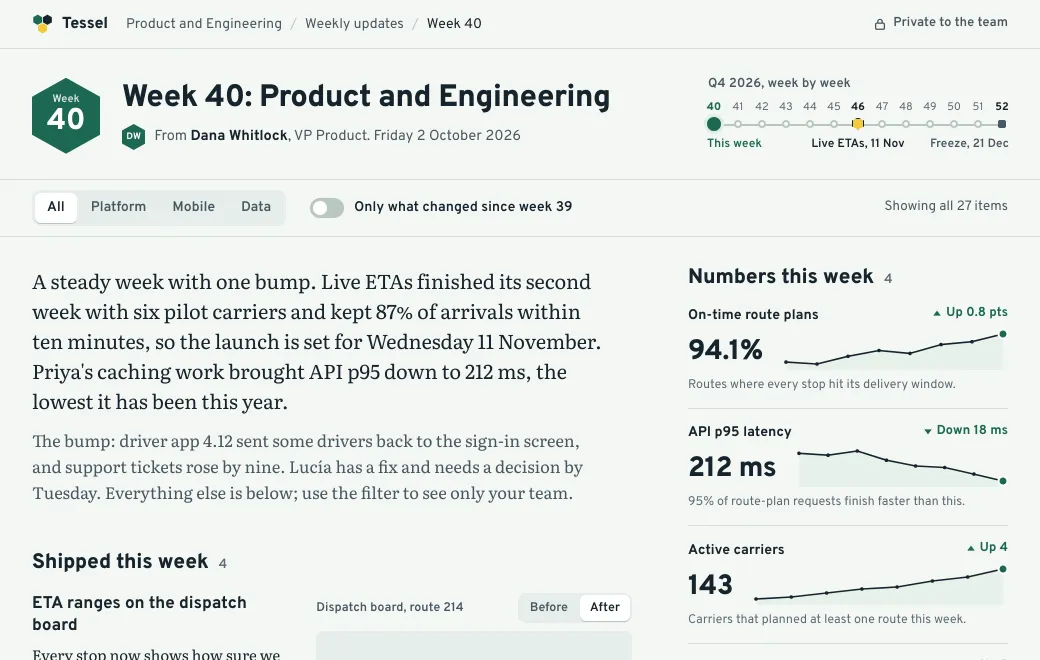
Tessel’s weekly update below is Private to a team workspace, so its Views would list every teammate who opened it. Filter it to Mobile and every section narrows to that team. That’s where Lucía Ortega has until Tuesday to choose between a hotfix and a rollback.
Where to look
- Open the artifact
In your workspace, open the file you shared.
- Switch to Views
Beside the preview, switch from Versions to Views. A line at the top says what this link’s mode lets you see.
- On an Email link, check Share too
In Share, each invited address shows when it was opened, or when you invited it if it hasn’t been opened yet.
What each number means
| You see | What it means |
|---|---|
| Views | How many times the link was opened in the last 30 days. The same visitor opening it again within 30 minutes is one view. |
| Visitors | Distinct people each day, added up. Someone who opens it on three different days counts three times. |
| Last opened | The most recent view. |
| The chart | Views per day over the last 30 days, today on the right. |
| Who opened it | On Private and Email links: each person’s name and address, how many views, and when they last opened it. On Email links, invited people who haven’t opened it are listed as “Not opened yet”. |
| Where they came from | The site the link was clicked on, such as mail.google.com, or “Direct or unknown”. |
| Countries | Where visitors were when they opened it. |
| Devices | “Phone or tablet”, or “Computer”. |
The totals and the chart cover the last 30 days. The list of names isn’t limited to that window, so it can include people who opened it earlier.
What isn’t counted
- Link previews. Slack, WhatsApp, iMessage and others fetch a link to draw its card. That isn’t a person reading it.
- Prefetching. Browsers that load a page in advance, before anyone clicks.
- Anyone stopped at the door. Someone who sees the code or sign-in screen and leaves. Only opening the page itself counts.
- Your own workspace, on Public and code links. Members aren’t counted while they’re signed in to artifact.guru, or you’d count yourself every time you checked. On your own domain nobody is signed in, so every open there counts, yours included.
- Your agent. Reading a file through the connection doesn’t open the link.
- A downloaded copy. Once someone has the file, reading it isn’t a view.
How visitors are counted without tracking them
Public and Secret code links are counted without cookies and without storing IP addresses. To tell visitors apart within one day, the address and browser are combined with the date and scrambled with a secret key. The result changes every day and is deleted at the next midnight UTC.
That’s why visitors are counted per day. The same person on Monday and on Tuesday can’t be linked, by us or by you. On Private and Email links, people have signed in, so what’s recorded is their name and address. View counts are deleted together with the artifact. The privacy policy has the details.
What you can’t learn
- How long they read, or how far. Pages run in a sandbox and send nothing back, so there’s no time on page, scroll depth or last slide seen. A view means the page was opened.
- When it happens. There are no notifications. Open Views when you want to know.
- Which version they saw. Views count the link, not a version. Opens before and after an edit are added together.
- Who is behind a count. On Public and code links, a forwarded link shows up only as one more visitor.
Three ways people use it
Following up a proposal
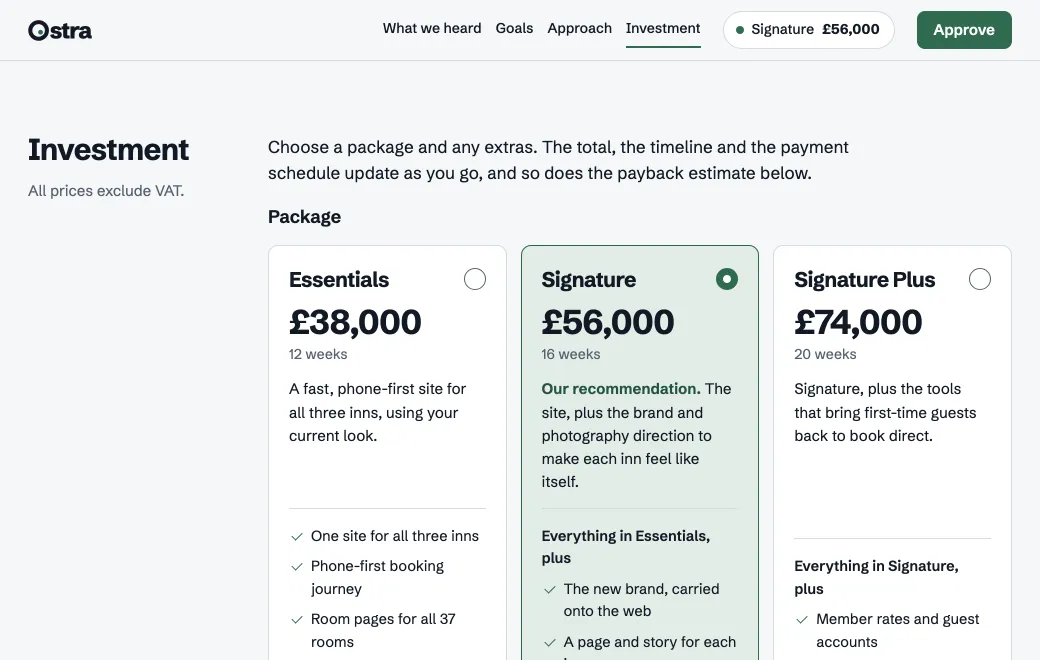
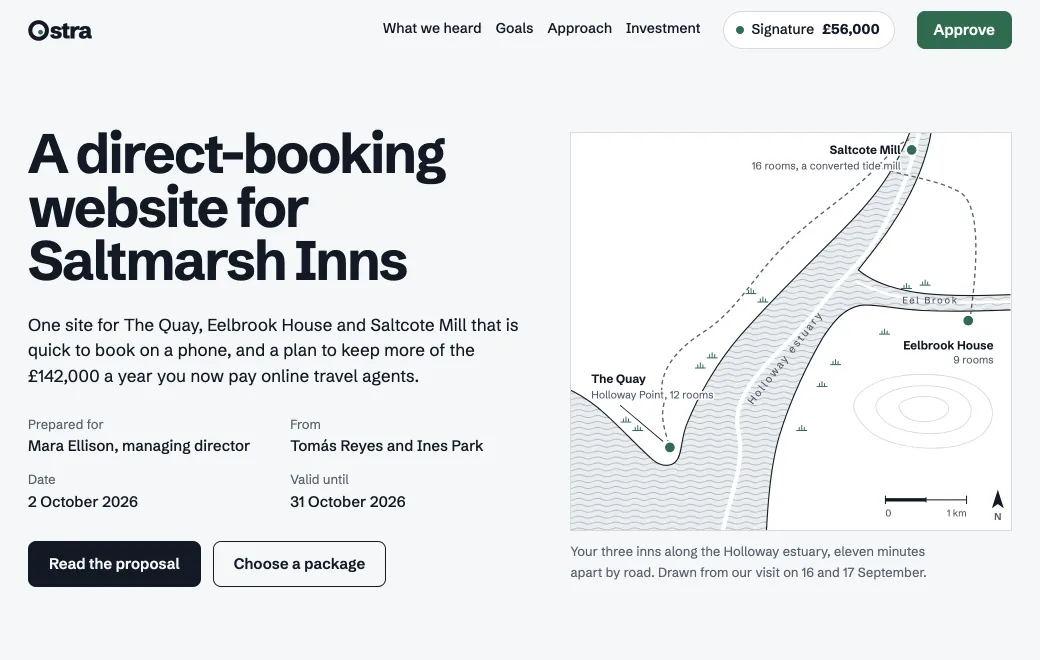
Share the proposal by Email with the two people who decide. Before you call, open Views. If the managing director opened it twice yesterday and the finance lead hasn’t opened it at all, call the first. Send the second a short note with the link.
Nudging a weekly update
Post the Private update in the team channel on Friday. On Monday, Views shows who opened it. Message the people who own this week’s decisions and haven’t opened it, rather than the whole channel. In the Tessel update, that’s Lucía before Tuesday and Priya before Thursday.
Seeing who reads on a phone
Devices splits opens between phones or tablets and computers. If most of a launch page’s visitors are on a phone, ask your agent to check the layout at phone width before the next round. On a Public page, Where they came from shows which sites sent them.
How to get names when you need them
Names come from signing in, so you get them by changing who can open the link.
- Open Share
Choose Email.
- Add the addresses
Up to 50 per artifact. artifact.guru sends no email, so send them the link yourself.
- They sign in
Each person enters the invited address and a one-time code emailed to them. There’s no password, and no plan to buy.
On a phone, the invitee sees “Sign in to open” and one line: “It was shared with specific people. Sign in with the email address it was sent to; you’ll get a one-time code.” They tap Continue, type the address, then the code from their inbox, and the page opens. Someone signed in with another address sees “You don’t have access”.
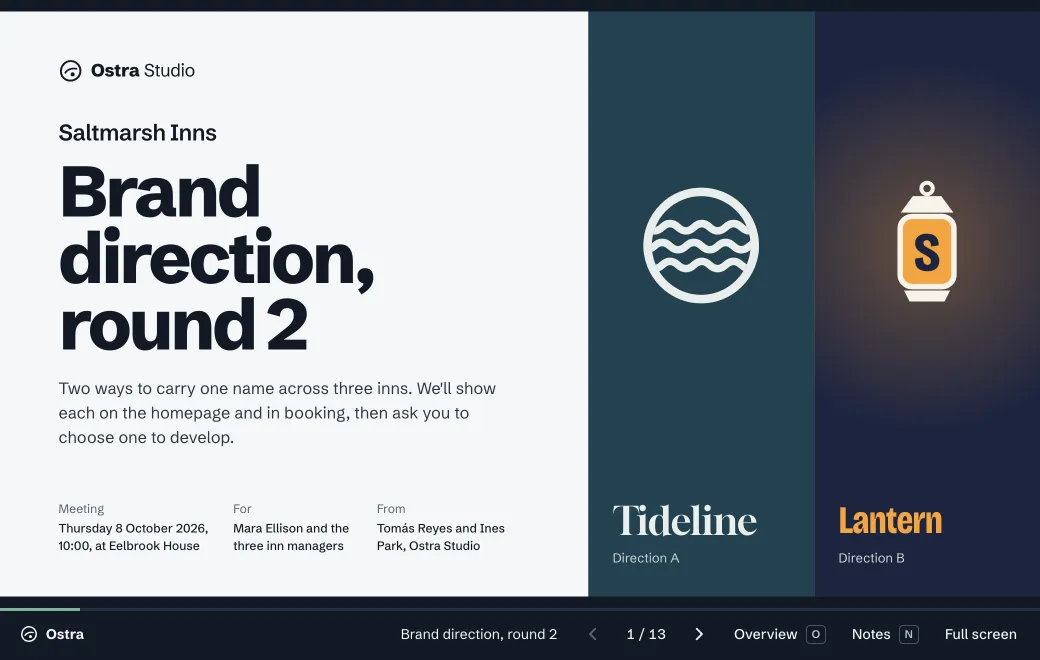
The link doesn’t change. From the next open, a link you already sent asks for sign-in, and earlier opens stay as counts. You can also ask your agent: “Make the Saltmarsh proposal Email-only and invite mara@example.com.” For teammates, keep it Private, since everyone in the workspace is named already. Choose who can open your link covers which mode suits which document.
When to use something else
- You need reading analytics. For time per page or an alert when a file is opened, use a document-tracking tool. artifact.guru doesn’t do either.
- You need an audit trail for compliance. There’s no audit log, only Views for each link.
- It’s one person and one question. Asking whether they had a chance to read it is quicker than any panel.