Export, share or keep current: three different jobs
“Export a Claude artifact” usually means one of three things:
- A file to keep or attach. Choose Export on a doc, deck or design, or use the download control at the top of a legacy artifact’s panel.
- A link for someone without Claude. A shared Claude artifact needs a Claude account to open, unless it’s a legacy artifact published from a chat. A file published on artifact.guru opens in any browser. See Who can open a shared Claude artifact.
- Something that stays current. An attachment is frozen the day you send it. A published file gets new versions at the same link.
Docs, decks and designs come from Claude’s Docs, Slides and Design templates. These are in beta on paid plans only. They’re on by default on Pro, Max and Team, and off on Enterprise until an owner turns them on.
What each export becomes on artifact.guru
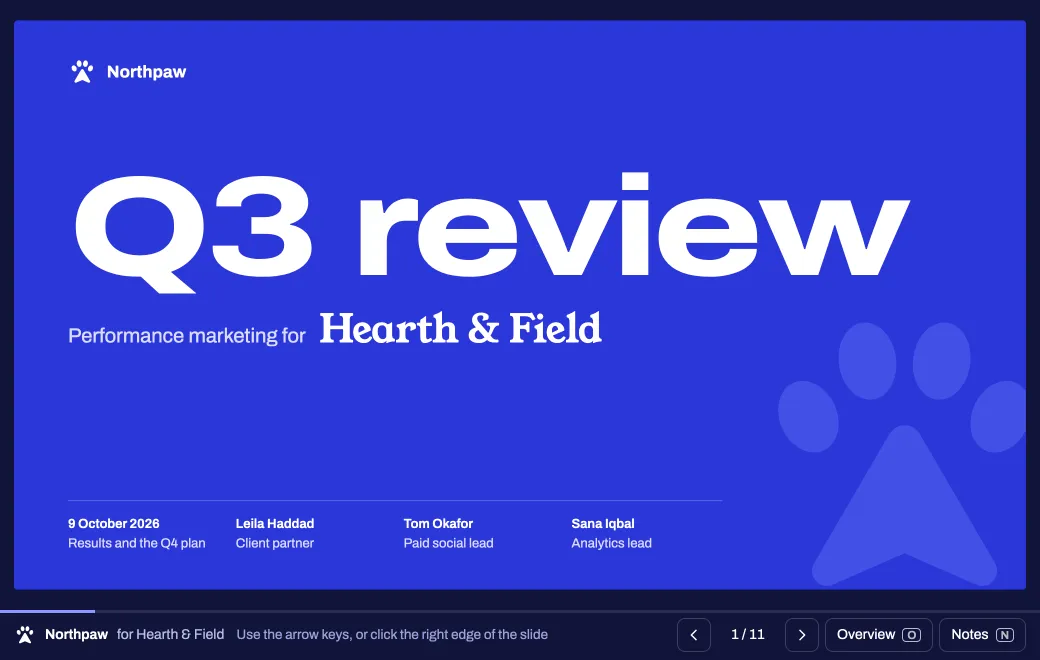
A deck built as a web page keeps the most. The one below is Northpaw’s Q3 review for its client, Hearth & Field. Click a channel in a chart’s legend to isolate it, or move budget around on the budget slide.
Because the deck is one HTML file, every chart still responds, and Notes still shows what the presenter says. A deck exported as PowerPoint arrives as slides people click through instead. Each export becomes something different on artifact.guru:
| Claude export | Publish on artifact.guru | What viewers see |
|---|---|---|
| Doc as Word | The .docx | A document, with Download for the original |
| Doc as PDF | The .pdf | Pages, one after another, on any screen |
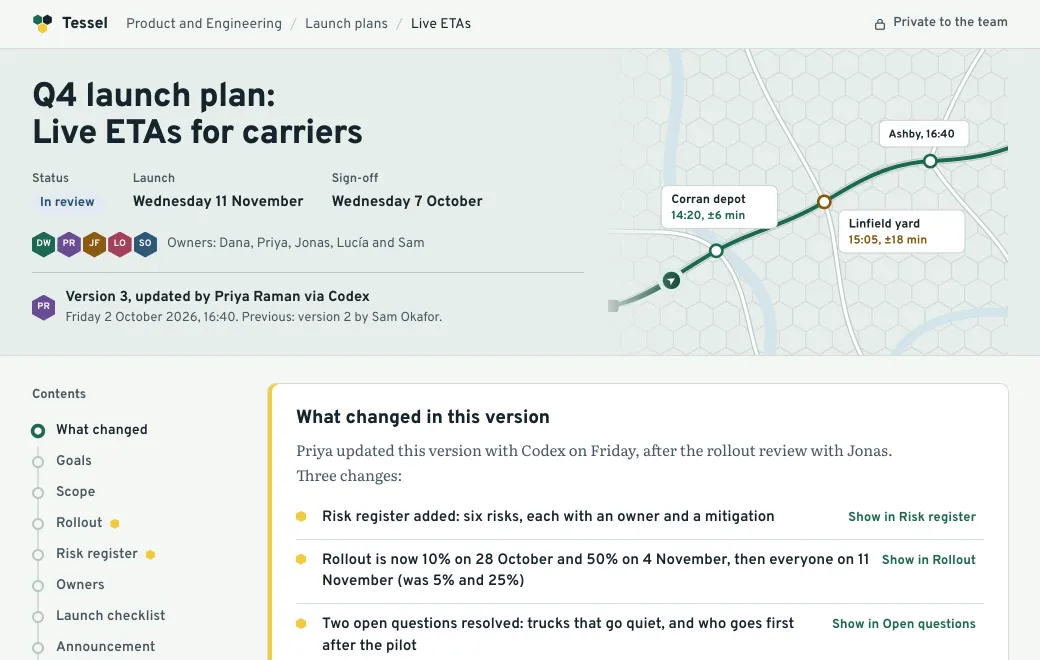
| Doc as Markdown | The .md | A formatted page. You can edit it in the app, with a live preview |
| Deck as PowerPoint | The .pptx | Slides they click through. You can fix text and layout in the app |
| Deck as PDF | The .pdf | Pages, one after another, on any screen |
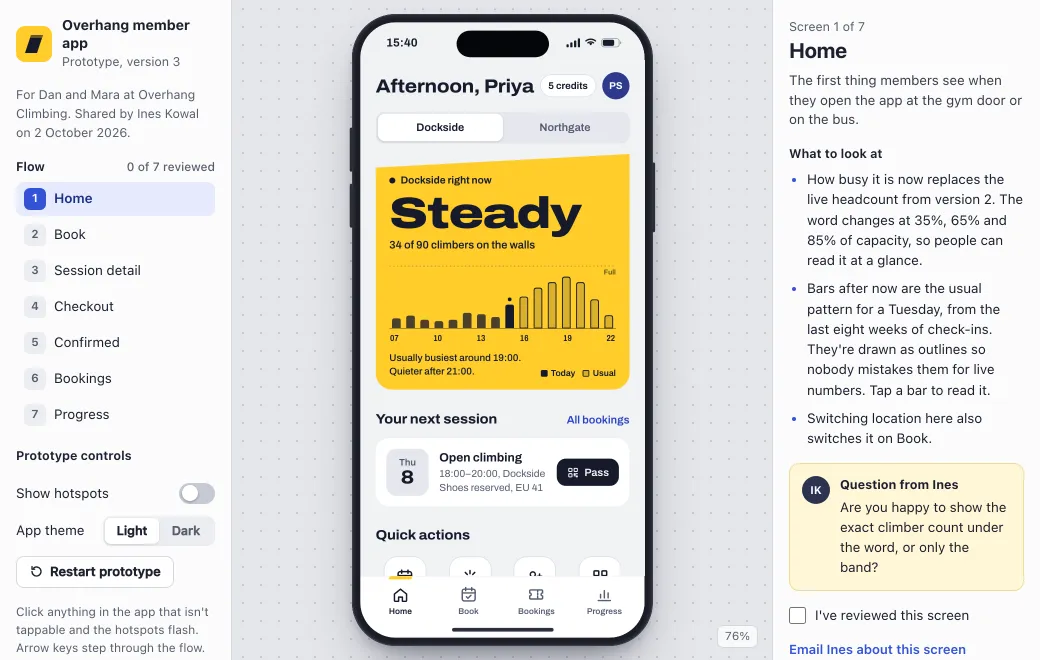
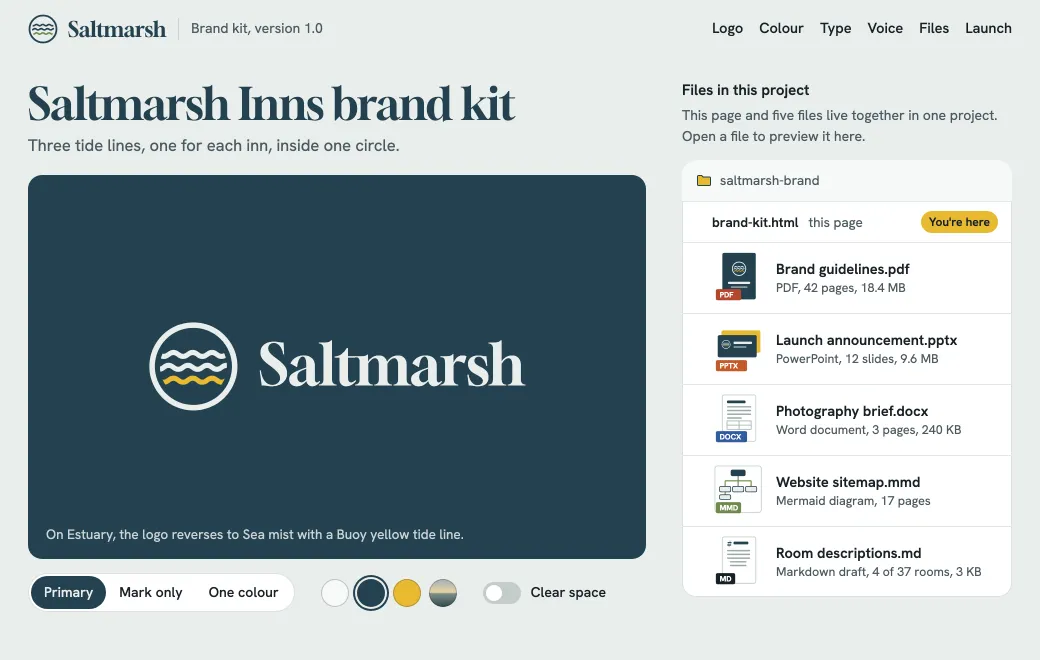
| Design as .zip | The .zip, as one artifact | A site, when index.html or App.jsx is inside |
| Design as standalone HTML | The .html, as it is | The page, running: charts, buttons and scripts work |
| Design as PowerPoint | The .pptx | Slides they click through. You can fix text and layout in the app |
| Design as PDF | The .pdf | Pages, one after another, on any screen |
| Legacy artifact, downloaded | The file you downloaded | Depends on its type. Check it against the formats list |
The Google Docs export is for working in Google Docs. For a link from artifact.guru, export Word or PDF.
Which export to pick
| You want | Export |
|---|---|
| Charts and controls that keep working | Standalone HTML, or the .zip |
| Slides the client clicks through, and typos you can fix without exporting again | PowerPoint |
| A document they read and can download | Word, or PDF if the layout must not move |
| Text you or an agent will keep editing | Markdown |
| Something to print or file away |
What stays behind in Claude
A published copy carries the file, but three things don’t come with it:
- Parts that use Claude. In Claude, people sign in with their own Claude account to use them, and the usage counts against their plan. On artifact.guru, those parts won’t respond.
- Connectors. Anything that reads from your connected apps works only inside Claude.
- Stored data. Whatever the artifact saved while it ran in Claude stays there; artifact.guru receives only the file. Published pages have no database. What a visitor changes resets when the page reloads, and nothing they type reaches you.
In an HTML page or a zipped site, anything that runs in the browser keeps working, such as charts, filters, sliders and keyboard shortcuts.
The shortcut: let Claude publish it
For a page, a React component or Markdown, you don’t need an export. Connect artifact.guru to Claude once and ask from the chat.
- Add the connector
In Claude, open Settings → Connectors, choose Add custom connector and paste the address. On Team and Enterprise, an Owner adds it first; then each member connects.
Copyhttps://mcp.artifact.guru/mcp - Approve
Sign in to artifact.guru and tick the workspaces Claude may use.
- Ask
“Publish this artifact to artifact.guru as a private page and give me the link.”
| Path | Better when |
|---|---|
| Ask Claude to publish it | It’s a page, a React component or Markdown, and you’ll want changes later. Claude edits the published file, and the link stays the same. |
| Export, then upload | You want a PowerPoint, Word, PDF or .zip, or the artifact is a doc, deck or design. Chat apps send text through the connector, not files. |
Upload it in the browser
- Export from Claude
Open the artifact, choose Export and pick a format. For a legacy artifact, use the download control at the top of the panel.
- Open your workspace
Sign in to artifact.guru.
- Drop the file on the page
Or use Upload files. A
.zipbecomes one artifact, served as a site. - Check the preview
It shows the file as viewers will see it. It starts Private, so only your workspace can open it.
- Choose Share
Pick Email, Secret code or Public, copy the link and send it yourself. artifact.guru sends no invitations.
Next month’s export can go to the same link. Under Versions, choose Upload new version, or ask an agent that can send files, such as Claude Code, to “publish this file to the same artifact”. It becomes the next version, and Roll back brings the old one back. You can also edit a PowerPoint or an HTML page in the app.
What viewers see
- Invited by Email: on a phone or a laptop, the link opens a “Sign in to open” card. They sign in with the invited address and a one-time code sent to it, and the file opens. There’s no password and no plan to buy.
- With a Secret code: an “Enter the code” card. They type the code and choose Open, with no account.
- Public: the file, straight away.
The file opens under a slim bar with its title, Copy link and Download. Switch off Show controls to open it full screen. A browser preview of an Office file can look different from PowerPoint or Word, so with controls on, the original is one click away.
When you don’t need artifact.guru
- Everyone who needs it has Claude. Share it in Claude, where invitees can also comment or edit.
- You only need a file to attach, print or archive. The export is the whole job.
- Your client works in Google Docs. Export to Google Docs and share it there.
- The artifact depends on Claude, your connectors or its stored data. It works fully only in Claude.
Limits
- Files up to 100 MB, or 250 MB on Team. One HTML page up to 5 MB, Markdown up to 2 MB, and a zipped site up to 25 MB zipped and 64 MB unzipped.
- Word documents, PDFs and zipped sites aren’t edited in the app. Replace a single file with Upload new version under Versions; for a zipped site, ask an agent to publish it to the same artifact.
- No comments, no co-editing, and no server behind pages.