Why send a link instead of a file
A deck attached to an email is out of date the moment you fix a typo. It opens badly on a phone, and nothing on it moves anymore. And the client forwards v3 to their boss while you present v5.
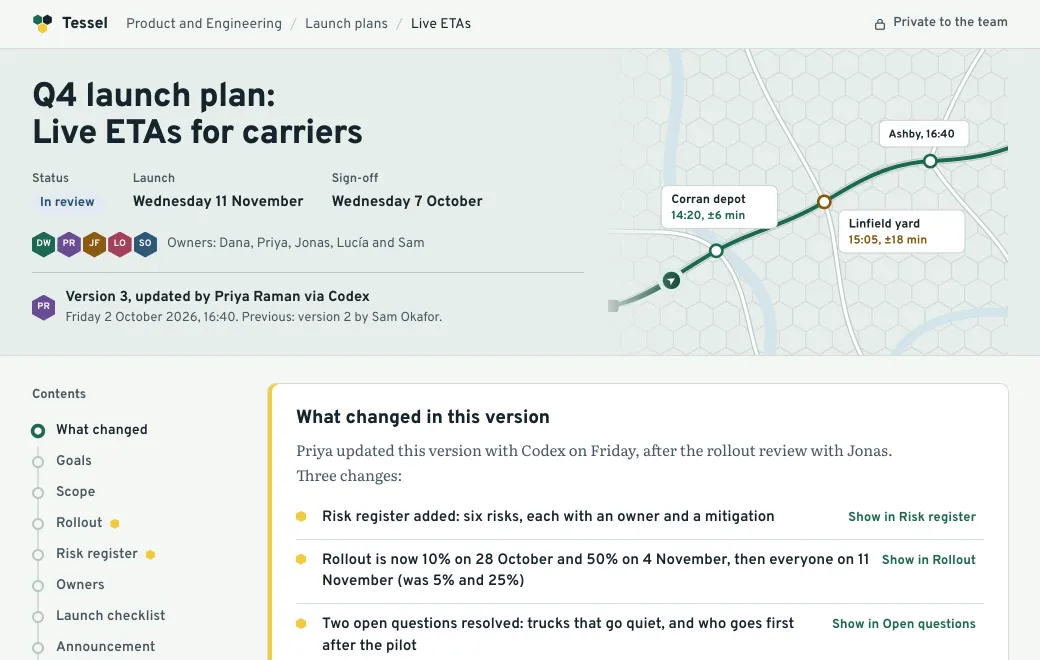
A link always opens the current deck, and its charts keep working after the meeting. The client can go back and try a different budget split on their own.
Bring the deck you have
| You have | What people get |
|---|---|
A PowerPoint file (.pptx) | Slides they click through in the browser. You can edit the text there, too |
| Markdown with Marp slides | A deck, rendered from plain text your agent can edit easily |
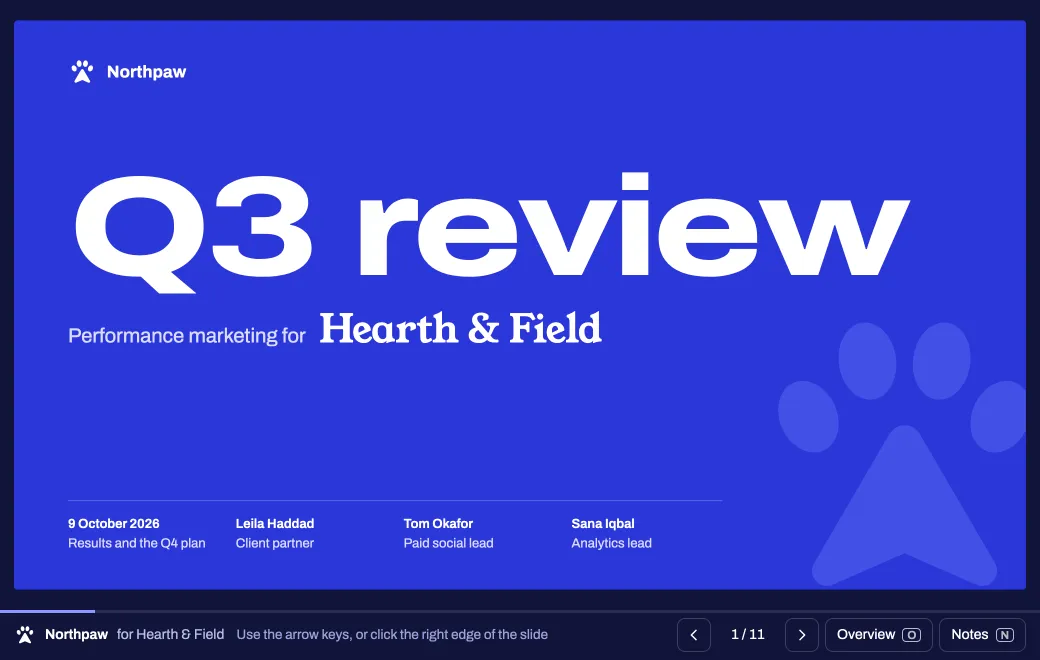
| A deck built as a web page | Everything a page can do: live charts, sliders, video, keyboard shortcuts |
| A PDF export | Page by page, with the original a click away |
Present it
- Publish the deck
Ask your agent to publish it, or drop the file on your workspace. For a web deck, ask for arrow-key navigation and presenter notes.
- Open it full screen
Switch off Show controls in the Share panel. The link then opens the deck on its own, with no bar on top.
- Share it with the room
Invite attendees by Email, or use a Secret code for a wider audience. Post the link in the meeting chat so people can follow on their own screens.
- Fix it after, at the same link
“Correct the Q3 ROAS to 3.4 and add the creative test result.” Anyone who saved the link now sees the corrected deck.
A deck that stays current
For a monthly or quarterly review, keep one link per client. Each month the agent publishes the new numbers as the next version. Past reviews stay in the Versions list, so if someone asks what you showed in June, you can roll back to it.
Limits
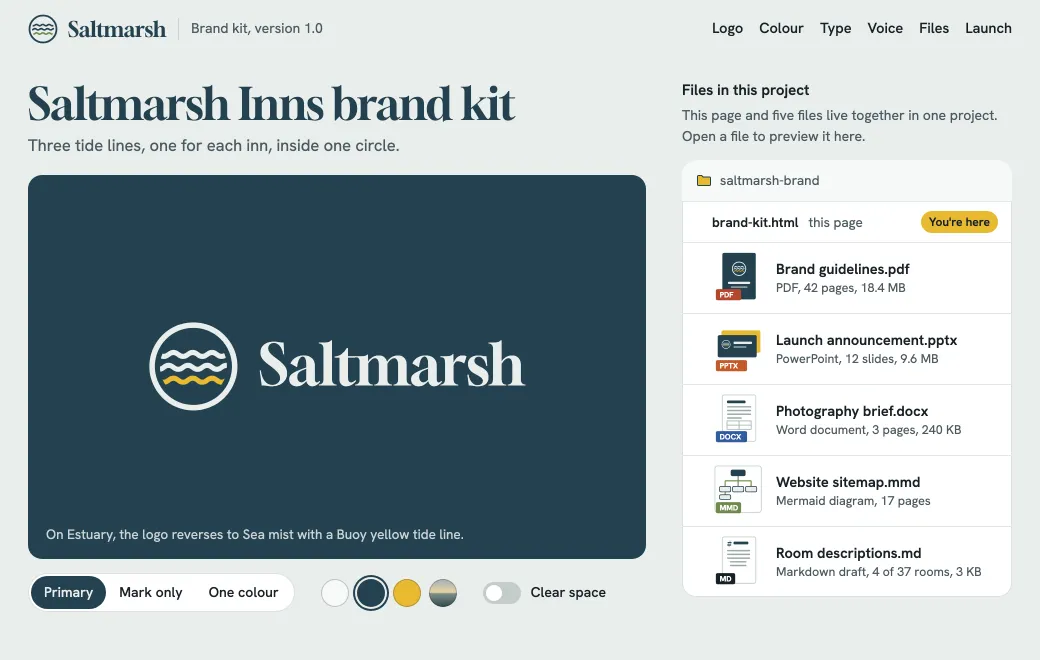
- PowerPoint and Word previews are drawn in the browser and can differ from Office in places. Download always gives the original file.
- Open pages don’t refresh by themselves; after an update, people reload the link.